

Have you ever received a QR code via email or WhatsApp while browsing on your phone, only to realize you can't point your phone's camera at its own screen? Most people think they need a second device to scan it.
The Hidden Risk of Sketchy Scanner Apps
Searching the app store for a QR scanner usually leads to downloading shady apps that demand unnecessary permissions—like accessing your contacts or location—just to read a simple code. Even worse, many online scanners upload your private screenshots to their servers, exposing your sensitive data (like UPI codes or Wi-Fi passwords).
The Bramhify Solution
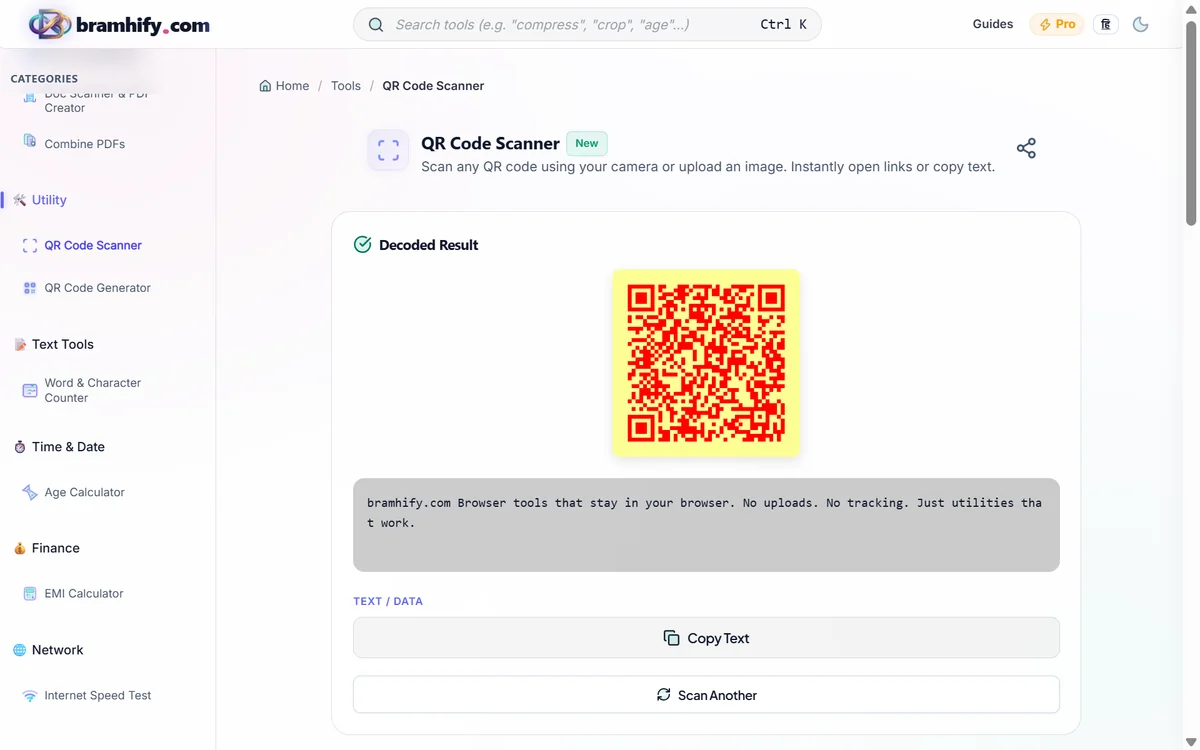
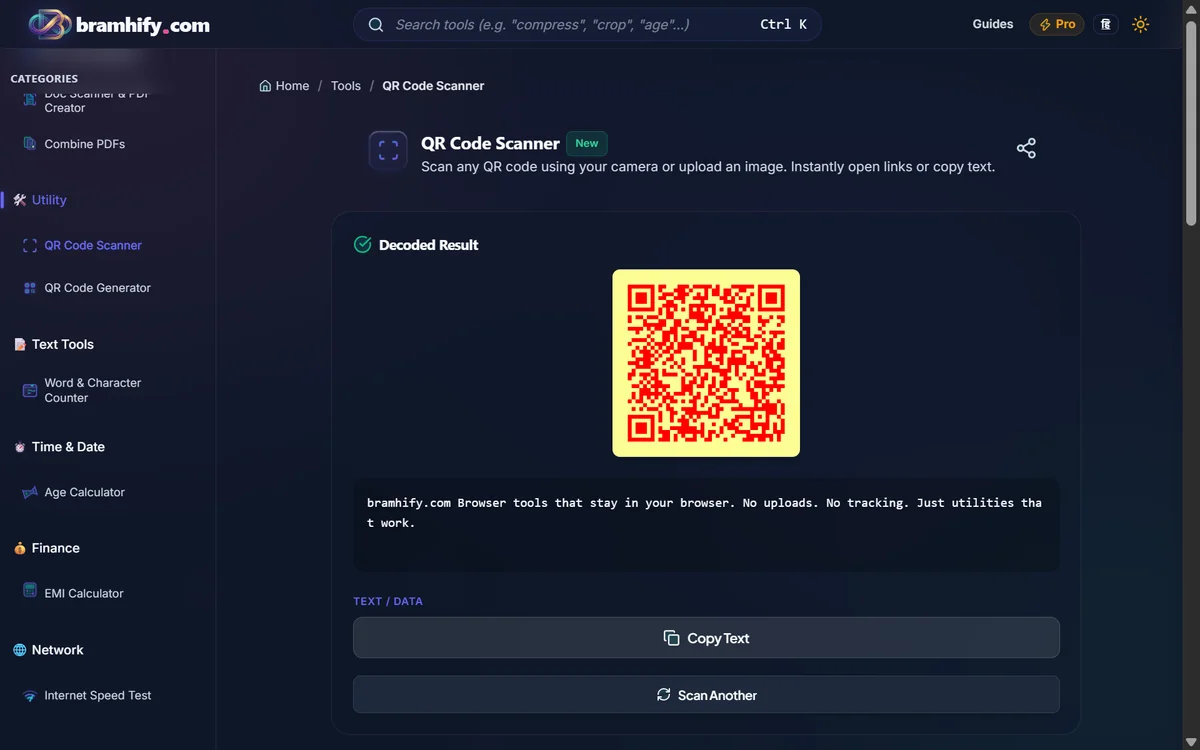
Instead of downloading an app or uploading your private photos to random servers, you can use Bramhify's QR Code Scanner. Our tool uses advanced WebAssembly to decode QR codes from your screenshots directly inside your browser. Your images never leave your phone, guaranteeing 100% privacy and security.
QR Code Scanner:

Step-by-Step Guide
Here is how you can securely decode any QR code from an image:
Step 1: Take a Screenshot
If the QR code is on your screen, simply take a screenshot. On most phones, you can do this by pressing the Volume Down and Power buttons simultaneously.
Step 2: Open the Scanner
Tap on the QR Code Scanner tool and switch to the "Upload Image" tab.
Step 3: Select Your Image
Tap the upload area and select the screenshot you just took from your phone's gallery. Because it processes locally, the tool will instantly analyze the image without any upload wait time.
Step 4: Take Action
The tool will immediately decode the QR code and display the hidden information. If it's a website link, you can tap to open it safely. If it's text, you can copy it to your clipboard. That's it! You're done.
Frequently Asked Questions (FAQs)
Can I scan a QR code from a screenshot on my laptop?
Yes! If you are on a laptop, you can take a screenshot of the QR code and simply drag and drop the image file into the scanner area. The tool will decode it instantly.
Is it safe to scan UPI payment codes from screenshots?
Absolutely. Since our tool processes the image entirely locally in your browser, your sensitive payment information is never uploaded to our servers, keeping you safe from data leaks.
What if the QR code in my screenshot is blurry?
Our scanner uses an advanced decoding engine that can handle slightly blurry or distorted codes. However, if the image is extremely low resolution, it might fail to decode. Make sure the QR code is clearly visible in the screenshot.
For more QR code tips, check out our guide on creating free QR codes and our WhatsApp QR code generator guide.