

You printed 100 QR code stickers for your shop. Three months later, customers start complaining that the QR code doesn't work anymore. You check with the service you used - your free trial expired, and now they want ₹800/month to keep your QR code alive.
This is one of the most common traps in the QR code world. And it's entirely avoidable if you know how static QR codes work.
The Scam You Need to Know About: Dynamic vs. Static QR Codes
Most popular "free" QR code websites (QRCode Monkey, QR Tiger, etc.) generate dynamic QR codes by default. Here's what that means:
The QR code doesn't actually contain your UPI ID, your website URL, or your WiFi password. It contains a short link to their server (something like qr-provider.com/x7b9). When someone scans it, their phone goes to the provider's server, which then redirects to your actual link.
The problem: If you stop paying, the redirect breaks. Every printed QR code you made - on your visiting card, your shop's wall, your packaging - stops working overnight. You have no recourse.
Static QR codes encode the actual data directly into the pattern of dots. No middleman. No server dependency. Scan it with any phone anywhere in the world, and it works - forever.
For 95% of personal and small business use cases in India, static QR codes are all you need.
Create a Free, Permanent QR Code:
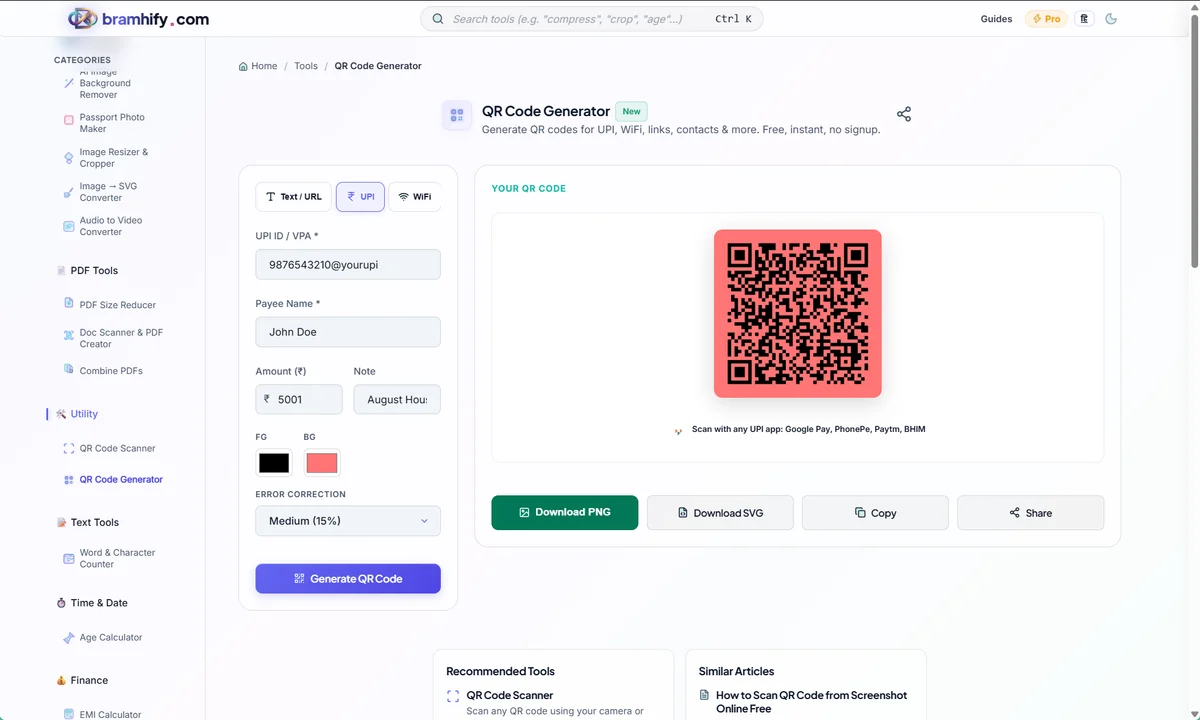
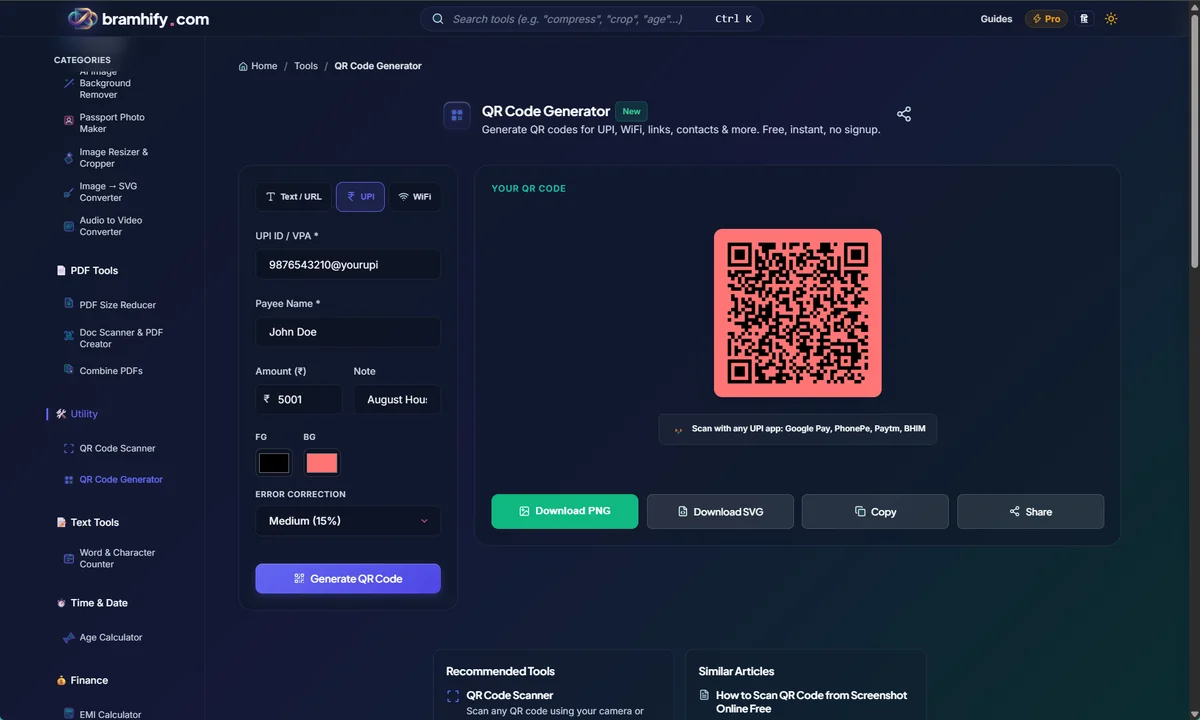

Step-by-Step: How to Generate Your QR Code
Step 1: Choose the QR Code Type
Open the tool and tap on the type of QR code you want to create. The tool has ready-made templates for:
URL - any website link
UPI - for accepting payments in India (Google Pay, PhonePe, Paytm)
WiFi - share your network without reading out the password
vCard - your digital business card
Email / SMS - pre-filled messages
Each type has a simple form. No technical formatting needed.
Step 2: Fill in Your Details
For UPI: Enter your UPI ID (like yourname@paytm), your display name, and optionally a fixed amount. The tool auto-formats the correct UPI string.
For WiFi: Enter your network name (SSID), your password, and the security type (WPA2 for most modern routers). Anyone who scans this code gets connected automatically - no typing needed.
For vCard: Enter your name, phone number, email, and website. When someone scans this QR code, their phone prompts them to add you to their contacts instantly.
Step 3: Customize and Download
Once your details are filled, the QR code preview updates in real time. You can change the color, adjust the error correction level (higher = more damage-resistant), and choose your download format.
For printing on paper or stickers, tap Download PNG. For large-format printing like posters or banners, tap Download SVG - this format stays sharp at any size.
The Most Useful QR Code Types for India
UPI Payment QR: If you run a small business - a kirana store, a tuition class, a freelance service - a printed UPI QR eliminates the "wait for me to open Google Pay" friction. Customers scan, amount appears, done.
WiFi Sharing: Stop spelling out your router password to every guest or customer. Print one QR code sticker, stick it near the entrance, and anyone who visits can connect their phone in one tap.
Digital Business Card: Paper visiting cards get lost, crumpled, or thrown away. A QR code on your phone's lock screen or on a single durable card stores your full contact info - name, phone, email, LinkedIn - and adds it directly to their phone contacts when scanned.
A Note on Privacy
Bramhify's QR Code Generator creates your code entirely in your browser. Your UPI ID, WiFi password, and contact details are never sent to any server. The code is generated using your phone's own processor, so you can even use it offline after the page is loaded.
No account needed. No "free trial." The QR codes you create never expire.