

With digital payments dominating India, it’s common to receive a UPI QR code via WhatsApp from a merchant or friend asking for payment. But paying blindly from a screenshot without verifying the UPI ID first is a common way people fall victim to financial scams.
The Danger of Blind Payments
When you directly upload a screenshot into a payment app like GPay, PhonePe, or Paytm, you are immediately taken to the payment screen. Scammers often use fake QR codes that display a trusted name but route the money to a fraudulent UPI ID. Before making any high-value payment from a gallery photo, you should extract and verify the hidden UPI ID string (e.g., merchantname@sbi) yourself.
The Bramhify Solution
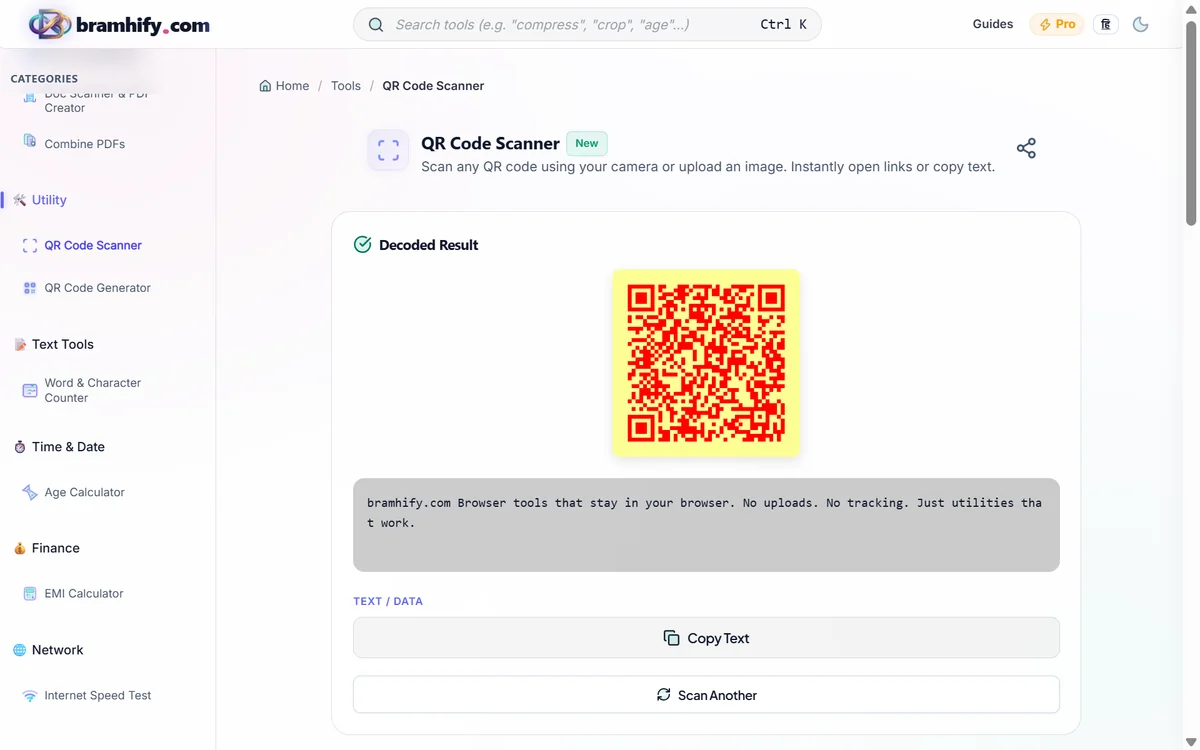
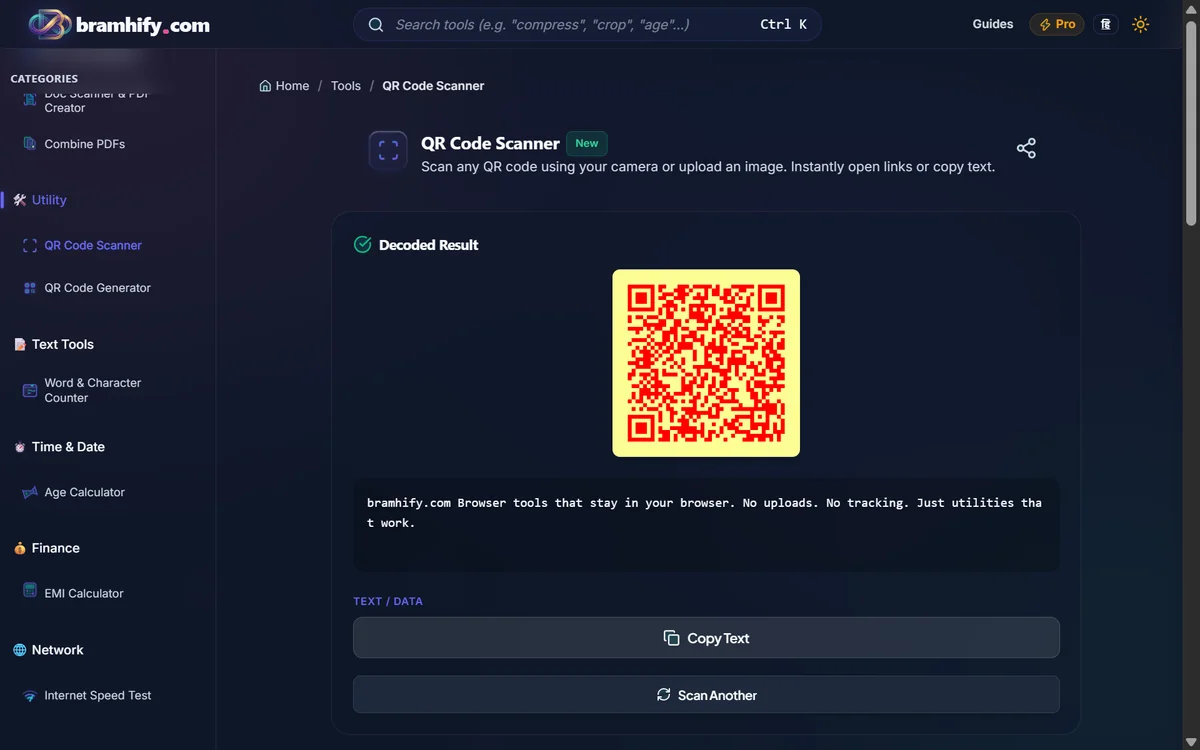
Bramhify's QR Code Scanner is the safest way to decode a UPI QR code from your image gallery. Unlike shady online scanners that might log your financial screenshots, our tool processes the image 100% locally in your browser. It instantly extracts the payment details without ever uploading your private screenshot to the internet.
QR Code Scanner:

Quick Steps
Here is how you can verify a UPI QR code from a screenshot before paying:
Step 1: Open the Scanner
Tap the QR Code Scanner tool above and switch to the "Upload Image" tab on your mobile browser.
Step 2: Select the Screenshot
Tap the upload area and choose the screenshot of the QR code from your phone's image gallery. The tool will process it instantly since it works entirely on your device.
Step 3: Verify the UPI ID
The tool will instantly decode the QR code and display the raw UPI link (it usually starts with upi://pay?pa=). Look for the pa= section to verify the exact bank ID the money is going to. Now you can pay with absolute confidence!
Frequently Asked Questions (FAQs)
Can I scan a PhonePe or GPay screenshot using this tool?
Yes. Our scanner can decode any standard UPI QR code, regardless of whether it was generated by Google Pay, PhonePe, Paytm, or BHIM. It extracts the universal payment string embedded in the image.
Is it safe to upload screenshots of financial QR codes here?
Absolutely. The Bramhify scanner uses WebAssembly to analyze the pixels of your image locally on your phone's processor. Your screenshot is never uploaded to any cloud server, ensuring 100% data privacy.
The scanner says the image is invalid, what should I do?
Ensure that the QR code is clearly visible in the screenshot and not cropped off at the edges. If the image is heavily compressed or blurry (which often happens when forwarded multiple times on WhatsApp), the scanner might fail to decode it. Try asking the sender for a clearer image.
For more personal finance tools and tips, check out our free UPI QR code generator to create your own payment codes, or use our EMI Calculator guide to plan your next loan.