

You are trying to open a new bank account, apply for a loan, or perhaps get a new SIM card. The agent tells you they need a clear PDF copy of both your Aadhaar card and your PAN card.
In the past, you would have to leave your house, find a local cyber cafe or stationery shop, and pay to get your physical cards photocopied and scanned. Today, you might try taking a quick photo with your phone, but a dark, blurry picture of your PAN card sitting on your bedsheet is rarely accepted by official portals.
In this guide, we will show you how to scan your Aadhaar and PAN card into a bright, clean, and professional PDF directly from your phone, without compromising your sensitive personal data.
The Danger of Random Scanning Apps
Your Aadhaar and PAN cards are the two most critical pieces of identity you own in India. They are linked to your bank accounts, your taxes, and your phone numbers.
When you download a free scanning app from the app store, you often have to grant it permission to access your camera, your storage, and the internet. Many of these "free" apps silently upload your scanned documents to foreign cloud servers to process them. They might promise to delete them, but once your unmasked Aadhaar number is sitting on a third-party server, it is out of your control and vulnerable to data breaches.
Furthermore, many of these apps will put a large watermark across your document, which bank managers and government portals will immediately reject.
The Bramhify Solution: 100% Private Scanning
You do not need to download an app or risk your privacy to get a perfect scan. You can use your phone's web browser.
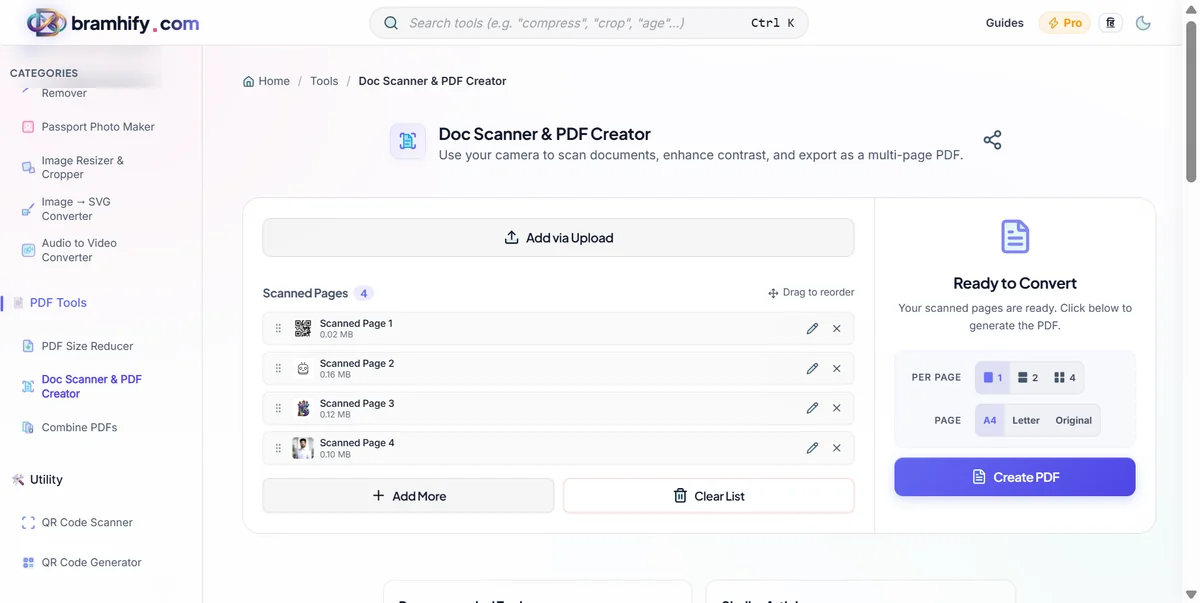
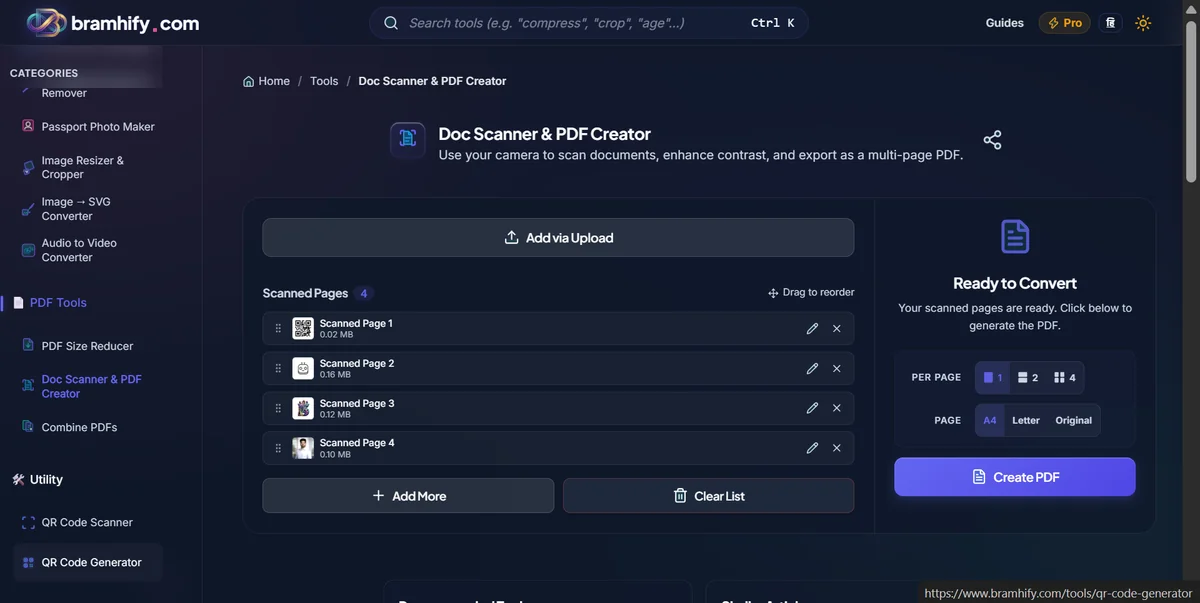
The Bramhify Doc Scanner & PDF Creator runs entirely on your device. When you take a picture of your Aadhaar card, the image is processed by your phone's own memory. Your ID cards never touch the internet. This means you get a professional-grade scan with absolute, zero-risk privacy.
Scan Your ID Cards Securely Here:

Quick Steps for a Perfect ID Scan
Follow these steps to turn your physical cards into a clean digital PDF:
Step 1: Open the Scanner
Tap the tool card above using your smartphone. It will open immediately in your browser.
Step 2: Photograph Your Aadhaar Card
Place your Aadhaar card on a dark surface, like a dark table or a mousepad. This high contrast helps the scanner detect the edges. Tap the camera button in the tool and take a photo. Make sure there is plenty of light so the text is readable.
Step 3: Crop the Edges
The tool will show you a blue box over your photo. Drag the four corners of this box so they align exactly with the four corners of your Aadhaar card. This will flatten the image and remove the background table. Tap next.
Step 4: Apply the Magic Color Filter
Your card is now flat, but it still looks like a photograph. Tap the "Magic Color" filter at the bottom. This will instantly brighten the background to pure white and enhance the text, making it look exactly like a high-quality physical photocopy.
Step 5: Add Your PAN Card (Optional)
If your bank requires both IDs in a single file, do not download yet! Tap the "Add Page" button, place your PAN card on the table, and repeat the photo and crop process.
Step 6: Export to PDF
Once both your Aadhaar and PAN cards look clean and bright, tap the "Export to PDF" button. A single, multi-page PDF document will instantly be saved to your phone.
You can now upload this professional document to any banking or government portal with complete confidence.
Next Steps for Government Portals
Sometimes, even after you create a perfect PDF, a government portal might reject it because the file size is slightly too large. If you face an error saying "File must be under 50KB", read our specific guide on how to compress your Aadhaar card online securely.
Alternatively, if you already took photos of your ID cards weeks ago and just want to combine them without enhancing them, you can securely convert your JPG photos to a PDF.