

YouTube is undeniably the world's largest search engine for music, lectures, and podcasts. However, if you are an independent musician trying to share a new track, a teacher with a recorded lecture, or a podcaster with an MP3 file, you will quickly discover a very frustrating roadblock: YouTube does not allow you to upload MP3 or audio-only files. You must upload a video file format, such as an MP4.
For decades, the only solution to this problem was incredibly tedious. You had to download heavy, complicated video editing software like Adobe Premiere Pro, Final Cut, or iMovie. Then, you had to import your MP3 track, stretch a single static image across the entire timeline to match the audio length, and finally wait for a sluggish rendering process just to create a basic video.
The Problem with Cloud Converters
When looking for a faster alternative, many people turn to online cloud converters. These websites promise to turn your MP3 into an MP4 quickly. However, they come with severe downsides:
- Privacy Risks: You have to upload your audio file to an unknown remote server. If you are a musician with an unreleased track, or a business professional with a confidential meeting recording, this is a massive security risk.
- Data Consumption: Uploading a 50MB audio file and then downloading a 300MB video file eats up a significant amount of internet bandwidth, which is a problem for users on limited mobile data plans.
- Wait Times: Cloud servers often put free users in long queues, meaning you might wait 15 minutes just to get your video.
The Browser-Based Alternative
Today, you don't need any complex editing software, and you don't need to upload your audio to a remote server. Bramhify's Audio to Video Converter uses advanced WebAssembly (WASM) technology to turn your own web browser into a local video processor.
This allows you to combine your MP3 file with a single background image and output a YouTube-ready MP4 file entirely on your own device. Because it happens 100% locally, it is completely private and skips the massive data consumption of cloud uploads.
Audio to Video Converter:
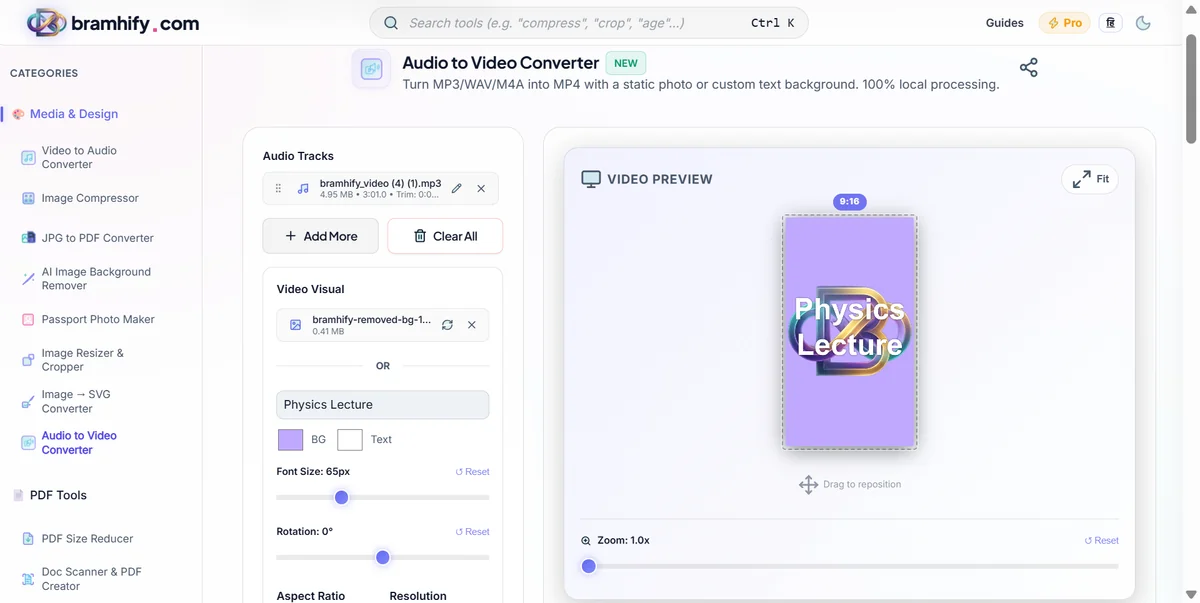

Step-by-Step Guide for YouTube
Follow these quick steps to get your MP3 onto YouTube in just a few minutes, right from your phone or computer.
Step 1: Upload Your MP3 Track
Tap the upload area on the tool and select your MP3, WAV, or M4A file from your device. If you have a long lecture, the tool can easily handle it. If you want to trim the audio before converting it, use the built-in waveform trimmer to cut out any silence or mistakes at the beginning or end of the track.
Step 2: Set the YouTube Background
YouTube requires a visual element. Upload your podcast logo, your music album art, or a custom thumbnail you made for YouTube. If you don't have a background image ready, you can simply type the title of your track into our dynamic text generator to create a minimalist, professional-looking background instantly.
Step 3: Choose 16:9 Aspect Ratio
YouTube's standard widescreen format is 16:9 (Landscape). It is critical that you select this option from the dropdown menu. If you select a square or portrait ratio, your video will have awkward, thick black bars on the sides when viewers watch it on a desktop or TV.
Step 4: Generate and Upload to YouTube
Tap the Generate button. Watch the progress bar as your own device processes the video. Once it completes, download the MP4 file to your computer or phone gallery.
You can now open the YouTube app or head over to YouTube Studio in your browser, click "Create," and upload the video just like any other file. Add your title, description, and tags, and publish your audio to the world!
If you also want to create vertical clips for YouTube Shorts, check out our broader tutorial on How to Convert Audio to Video with a Background Image to learn more about the different aspect ratios you can use.