

Google Photos is undeniably one of the best cloud storage apps for organizing your memories. With features like automatic backup, face recognition, and easily searchable albums, it is the perfect place to keep your life's moments safe.
However, many people run into a frustrating limitation when they try to backup important voice memos, childhood audio recordings, or interview files: Google Photos does not support audio files. It will only backup image formats (JPG, PNG) and video formats (MP4, MOV). If you have a folder full of precious MP3 or WAV recordings on your phone, the Google Photos app will simply ignore them.
Why Backing Up Audio is Important
You might have voice recordings of your grandparents telling stories, an important business meeting you recorded on your phone, or voice notes of your child's first words. Losing your phone or accidentally resetting it means these irreplaceable audio files are gone forever, especially if they aren't backed up to a reliable cloud service.
While you could upload audio files to Google Drive, Drive lacks the visual organization, timeline view, and shared album features that make Google Photos so easy to browse. You can't just quickly scroll through a timeline in Google Drive and visually identify a memory.
The Workaround: Convert Audio to a "Video"
The smartest and easiest way to trick Google Photos into accepting your audio files is to convert them into MP4 videos. By combining your audio recording with a static image (like a photo of the person speaking, or a text thumbnail describing the audio), you create a video file. Google Photos will happily upload this video, index it by date, and allow you to add it to any of your albums.
However, you should never use a random cloud-based converter for this. Uploading your private family recordings or confidential business meetings to a third-party server is a massive privacy risk.
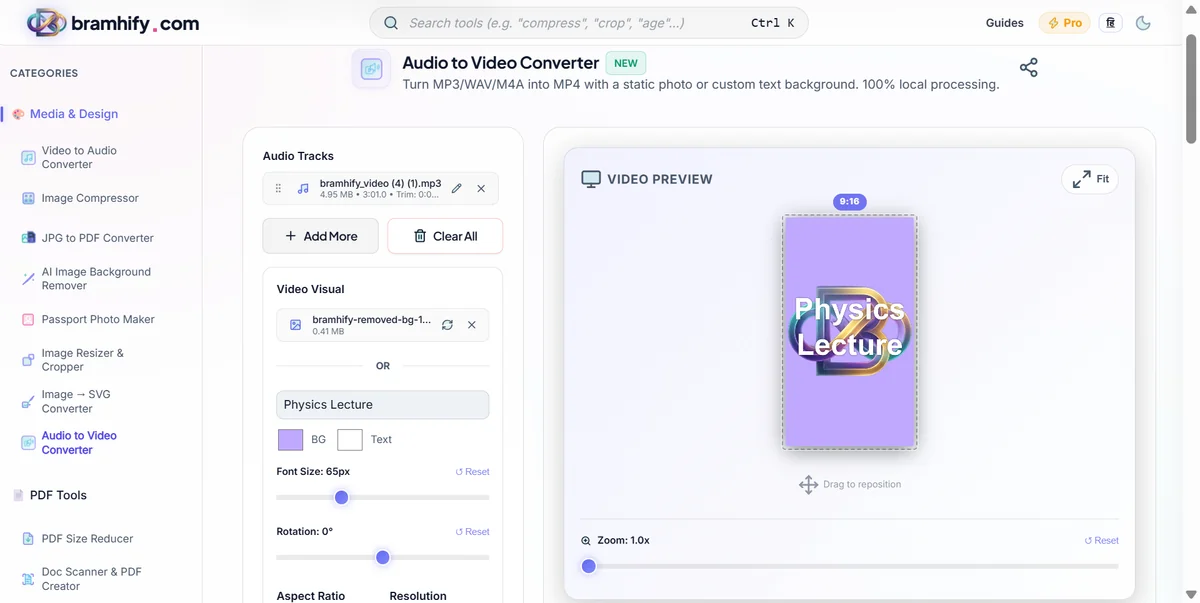
Instead, use Bramhify's Audio to Video Converter. It processes the video 100% locally on your own device using WebAssembly technology. Your audio files never leave your phone, ensuring complete privacy, zero data consumption, and lightning-fast conversion.
Audio to Video Converter:

Step-by-Step Guide for Google Photos
Here is how you can quickly convert your audio files and get them into Google Photos:
Step 1: Upload Your Voice Recording
Tap the upload area and select your MP3, M4A, or WAV voice recording. If there is unnecessary silence at the beginning or end of the recording, you can use the built-in trimming tool to crop the audio perfectly.
Step 2: Choose a Meaningful Background Image
Since you want this memory to be easily identifiable in your Google Photos timeline, pick a good image. If it's a recording of your grandfather, upload a picture of him. If it's a business meeting, use our text generator to write "Project Kickoff Meeting - August 2026" as the background. This visual thumbnail will show up in Google Photos, making it incredibly easy to search for later.
Step 3: Select an Aspect Ratio
For most Google Photos backups, a 16:9 (Landscape) or 1:1 (Square) aspect ratio works best. This ensures the thumbnail looks great when viewing it on your phone or casting it to a TV.
Step 4: Generate and Let Google Photos Sync
Tap the Generate button. Once the local processing is complete, download the MP4 video to your device.
Because the resulting file is a standard MP4 video, the Google Photos app on your Android or iPhone will automatically detect it and back it up to your account (as long as you have auto-backup turned on for your Downloads folder). You can now add this "video" to any album, share it with family members, and keep your important audio memories safe forever!
For more tips on combining media, read our general guide on How to Convert Audio to Video with a Background Image.