

You have just signed a crucial contract, or perhaps you need to send a stack of medical receipts to your insurance company. The recipient asks you to "please scan and send as a PDF."
In the past, this meant finding a physical flatbed scanner, installing clunky drivers, and dealing with tangled cables. Today, most people simply take a picture with their smartphone. However, sending a dark, skewed photograph of a crumpled paper looks unprofessional and is often rejected by businesses and government offices.
In this tutorial, we will show you how to scan documents with your phone to create a perfect, professional PDF - complete with bright white backgrounds and sharp text - without downloading any sketchy scanning apps.
The Hidden Risk of "Free" Scanning Apps
If you search your phone’s app store for a document scanner, you will find hundreds of free options. But before you tap download, you should consider the hidden costs.
Most free scanning apps are heavily bloated with aggressive advertisements. Worse, many of them require you to create an account and silently upload your scanned documents to their cloud servers. If you are scanning sensitive financial contracts, medical records, or tax documents, uploading them to an unknown third-party server is a massive privacy and security risk.
Even if you find an app that doesn't steal your data, it will likely place a huge, ugly watermark across your scanned document unless you pay for a premium subscription. You should not have to pay a monthly fee or sacrifice your privacy just to scan a few pieces of paper.
The Bramhify Solution: A Private, In-Browser Scanner
What if you could get the power of a premium scanner app directly in your web browser, without installing anything?
The Bramhify Doc Scanner & PDF Creator is a fully featured scanning tool that runs entirely on your device. You can access your phone's camera, snap a picture of your document, and our advanced web technology will process the image locally.
Your documents never leave your phone. Because the processing happens locally in your browser's memory, you get 100% privacy, zero watermarks, and instant results.
Start Scanning Your Documents Here:
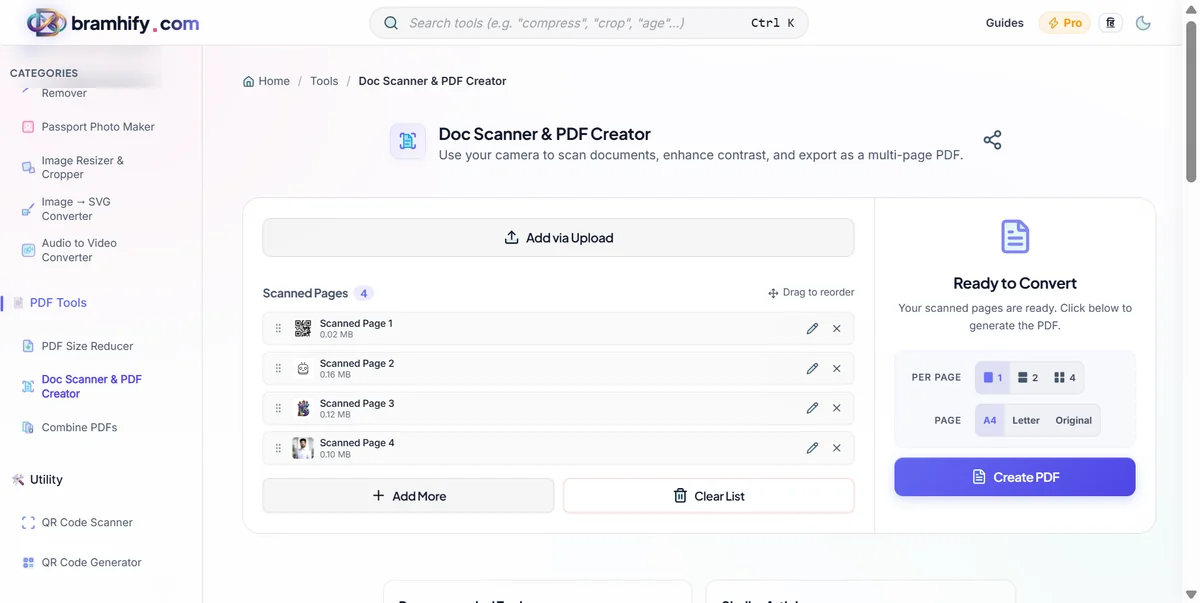
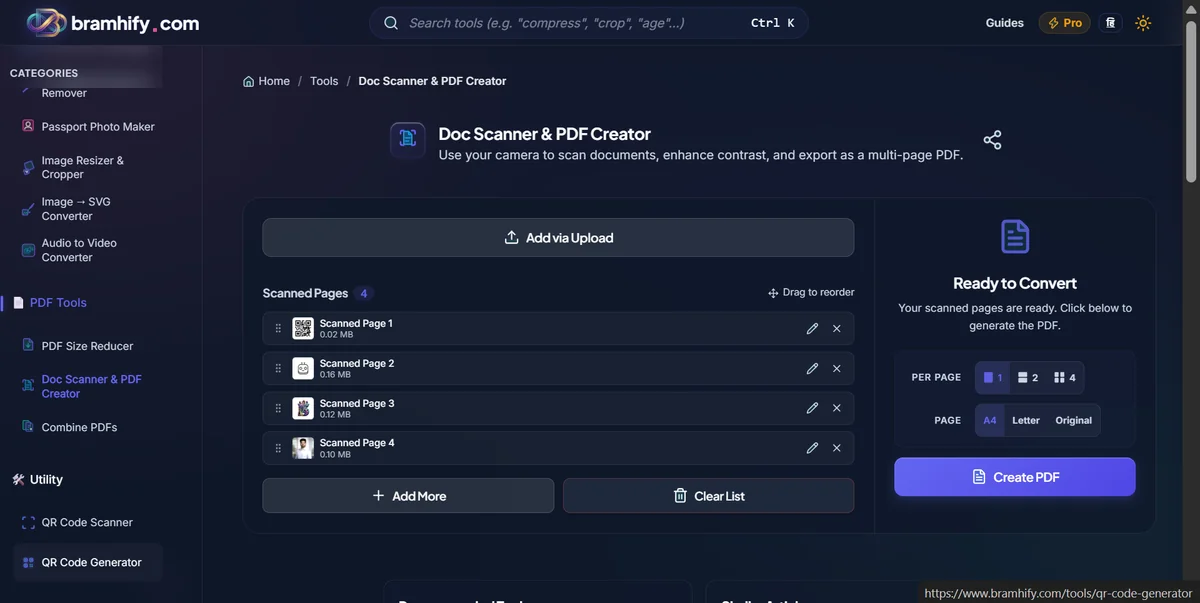

How Does the Scanner Enhance Your Document?
Taking a raw photo of a piece of paper usually results in a greyish, shadowy image. Our scanner fixes this through two key on-device processes:
- Perspective Correction: If you took the photo at an angle, the paper looks like a trapezoid. Our tool allows you to map the four corners of the paper, and it will mathematically stretch the image back into a perfect, flat rectangle.
- Color Enhancement: The "Magic Color" or "Grayscale" filters analyze the contrast between the ink and the paper. It forces the grey shadows to become bright white and darkens the text to deep black, making it look exactly like it came out of a physical photocopy machine.
Step-by-Step Guide
Follow these simple steps to turn your physical papers into a professional, multi-page PDF document.
Step 1: Open the Doc Scanner
Tap the tool card above on your smartphone. The tool will open instantly. There is no app to download and no account to create.
Step 2: Capture or Upload Your Document
You have two choices. You can tap the camera button to take a fresh photo of your document right now, or you can upload an existing photo from your gallery. If you are taking a new photo, try to place your document on a dark, contrasting background (like a dark table) and ensure there is plenty of light.
Step 3: Crop and Correct Perspective
Once the image is loaded, you will see a cropping tool. Drag the four corners of the blue box so they perfectly match the four corners of your physical document. This tells the scanner how to flatten the image. Once aligned, tap next.
Step 4: Apply Enhancements
Your document will now be flattened, but it might still look like a photo. Use the filter options at the bottom of the screen. Select "Grayscale" if it is a standard black-and-white text document, or select "Magic Color" if there are colored stamps, signatures, or logos you want to preserve. The background will instantly turn bright white, and the text will become incredibly sharp.
Step 5: Add More Pages (Optional)
If you are scanning a multi-page contract, do not download just yet! Tap the "Add Page" button to scan the next piece of paper. You can repeat this process as many times as you need. All the pages will be bundled together into a single file.
Step 6: Export to PDF
When you have scanned all your pages and they look perfect, tap the "Export to PDF" button. In a fraction of a second, your phone will generate a high-quality PDF file and save it directly to your downloads folder.
You are now ready to email your professional, crystal-clear document with complete peace of mind knowing it was never uploaded to a third-party server.
Already Have Photos of Your Documents?
If you already have a gallery full of document photos that are perfectly cropped and you just need to bundle them together, you do not need to rescan them. You can simply use our fast, secure tool to convert JPG to PDF for free.