
Have you ever tried to stretch a small logo or icon to make it bigger, only to watch it turn into a blurry, pixelated mess? This happens because standard images (like JPGs and PNGs) are made of fixed pixels. If you want a graphic that stays perfectly sharp no matter how large you make it, you need a vector file (like an SVG).
Normally, converting a raster image into a vector involves paying for expensive software like Adobe Illustrator or wrestling with complex, confusing command-line tools. But it doesn't have to be that hard.
Why Cloud Vector Converters Are Risky
If you search for a free converter, you'll find plenty of websites that ask you to upload your file to their servers. While this might be okay for a random graphic, it is a huge privacy risk if you are working on confidential client assets, unreleased company logos, or personal artwork.
When you upload your files, you lose control over who sees them and where they are stored.
Bramhify's Image to SVG Converter takes a completely different approach. It uses a powerful, specialized WebAssembly (WASM) engine that runs directly in your browser. This means your image is traced into a vector locally on your device - it never touches the internet or a cloud server.
Try the Image to SVG Converter:

Step-by-Step Guide
Converting your image into a crisp, scalable SVG is incredibly simple.
Step 1: Add Your Image
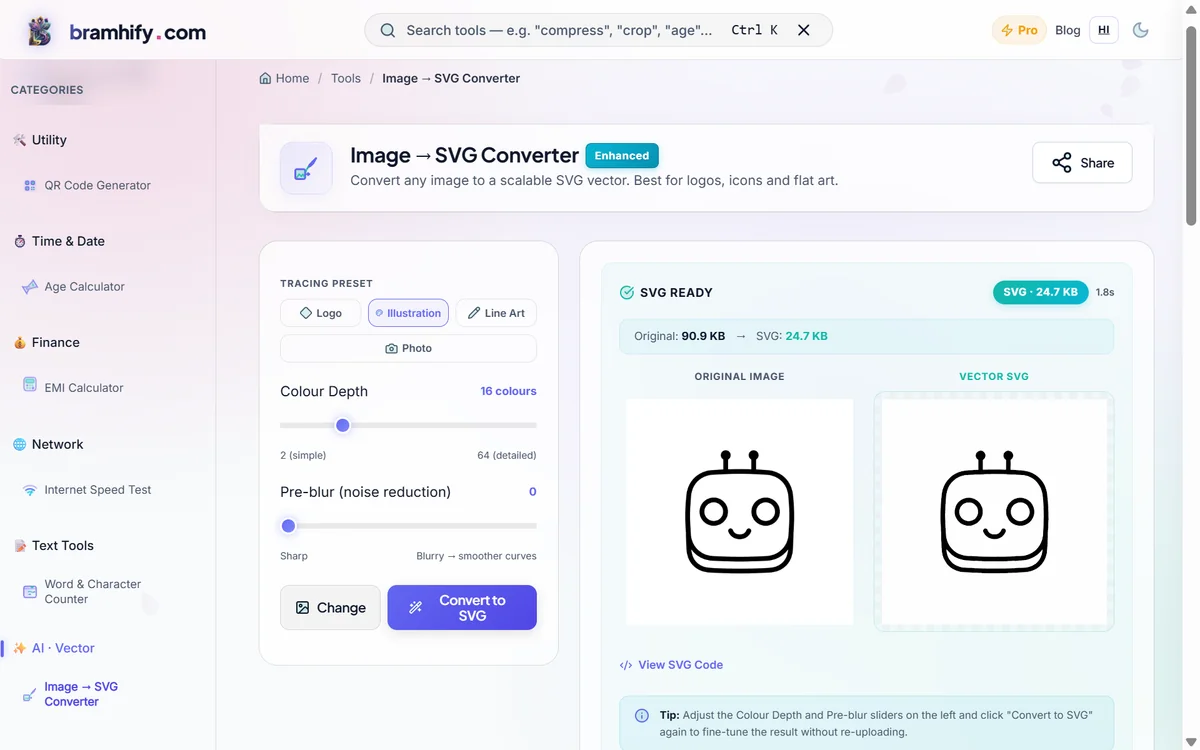
Open the converter and tap the large upload box to select your image. You can use standard formats like JPG, PNG, WEBP, or GIF. The tool works best with flat-colour images like logos, icons, and sketches.
Step 2: Pick a Tracing Preset
Right after your image loads, pick a preset that matches your artwork. Tap Logo for clean, simple shapes, Illustration for complex digital art, or Line Art for black-and-white drawings.
Step 3: Fine-Tune the Output
If the vector isn't perfectly sharp, use the sliders on the left panel to make quick adjustments. Tweak the Colour Depth to capture more or fewer colours, and use the Pre-blur slider to smooth out any jagged noise before converting again.
Step 4: Download Your SVG
Tap the Convert to SVG button. Within seconds, your image is traced into a perfect vector. You can copy the raw SVG code directly to your clipboard, or tap Download SVG to save the file. That's it!
If you work with large image files and need to reduce their size before vectorizing, check out our guide on how to compress images without losing quality. If you're building a complete privacy-first workflow, don't miss our breakdown of the best free PDF tools that never upload your data.