

When applying for government examinations, submitting online job applications, or executing digital vendor agreements, you are almost always required to upload a digital copy of your signature. Most people simply take a quick photo of their signature written on a notebook, crop it roughly, and upload the image file.
Unfortunately, this approach almost always produces an unprofessional result: a dark, shadowy grey paper background, uneven yellowish lighting, and jagged, pixelated ink lines that look messy when inserted into an official digital contract. Even worse, if you try to resize or stretch that standard JPEG or PNG image to fit inside a designated signature box, the text becomes completely blurry and distorted.
In this step-by-step guide, we will explore why you should convert your handwritten signature into a pure vector SVG format, the extreme privacy risks of using online cloud converters, and how to create a crisp, 100% transparent vector signature locally on your device for free.
Why You Must Never Upload Your Signature to Cloud Servers
Your handwritten signature is not just a casual drawing - it is a legally binding identifier. It is the primary authentication mechanism used across your banking records, property deeds, tax filings, and employment contracts.
When you use generic "free background remover" or "photo to SVG" websites found on search engines, you are actively transmitting a high-resolution image of your legal signature over the internet to an untrusted third-party server.
Identity Theft & Forgery: If that website's cloud storage bucket is compromised or accessed by bad actors, your digital signature can be extracted, vectorized, and pasted onto forged documents or loan applications.
Data Retention Policies: Many online utility sites quietly retain copies of uploaded images for weeks or months to train machine learning models or monetize user traffic.
You should never give third-party web servers access to your handwritten signature. The entire vectorization and background removal process can - and should - take place exclusively inside your device's browser memory.
The Bramhify Solution: 100% Private Client-Side Vectorization
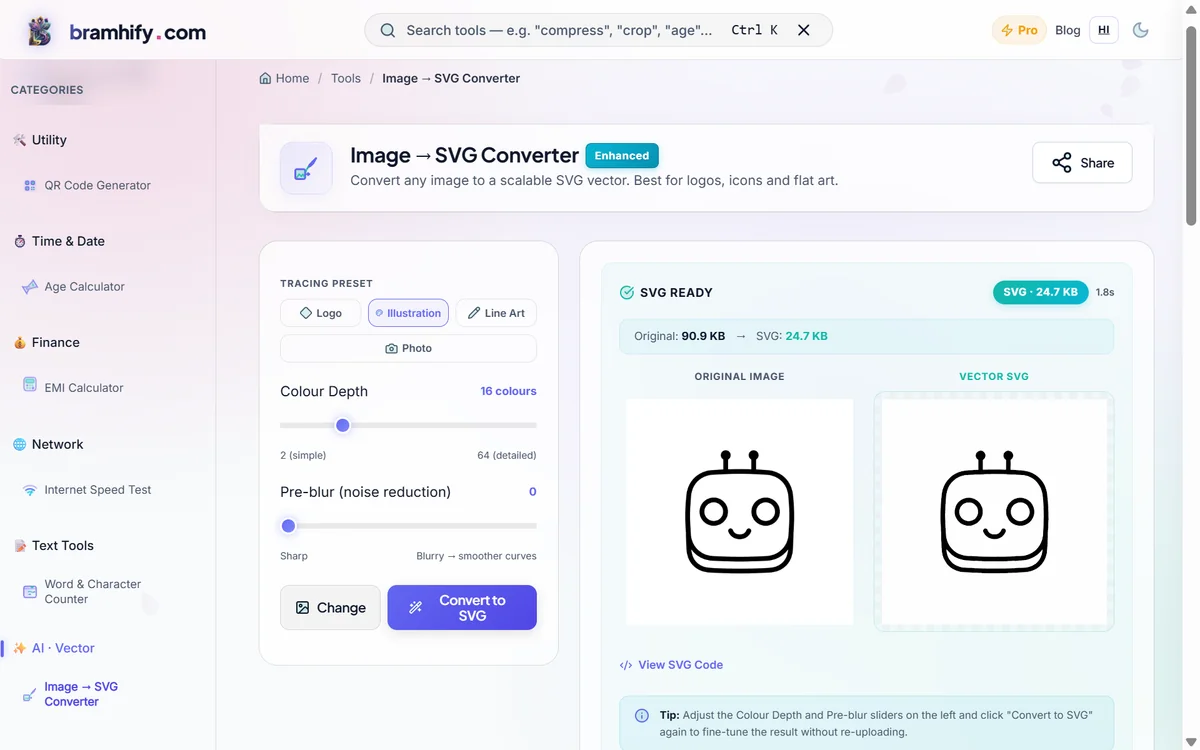
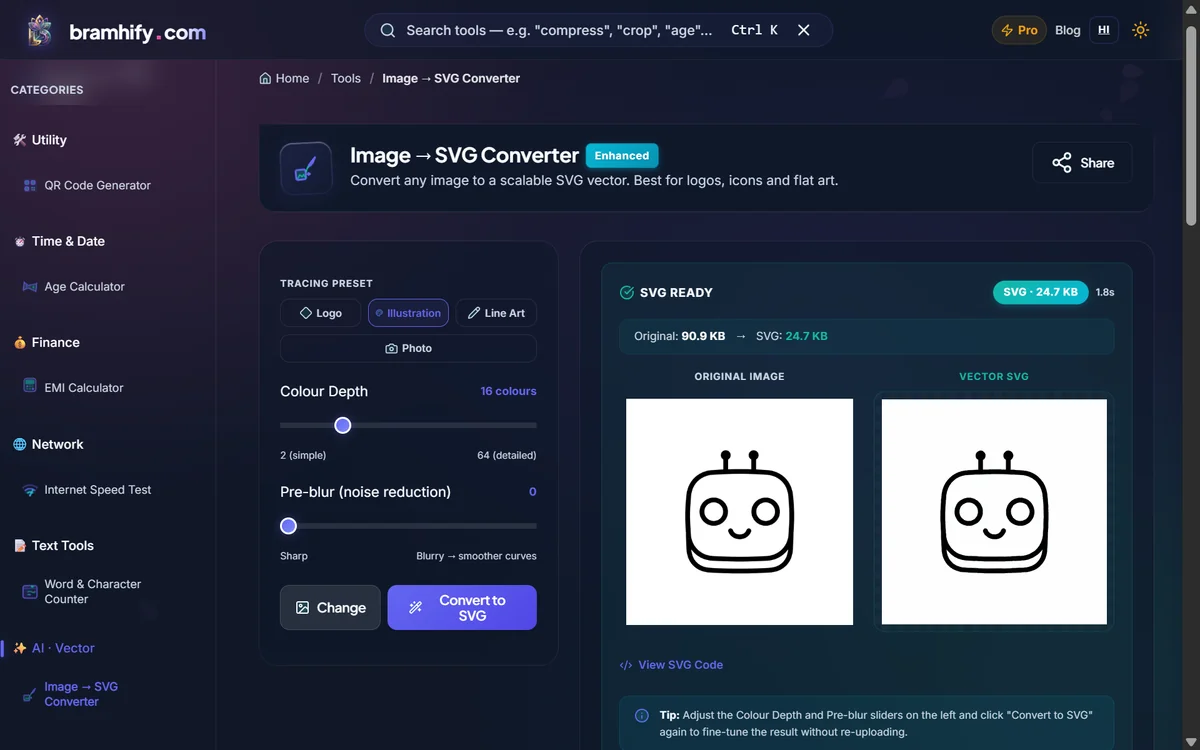
Bramhify's Image to SVG Converter was engineered specifically to solve this security dilemma. Built on modern WebAssembly and HTML5 Canvas technology, our tool processes and traces your signature entirely within your phone or computer's local hardware.
Your original image file is never uploaded to any remote server or cloud database. Because the tool converts raster pixels (JPEG/PNG) into mathematical vector curves (SVG), your resulting signature enjoys several distinct advantages:
- Infinitely Scalable: Unlike standard pixel images, vector SVGs never pixelate or blur. You can enlarge your signature to billboard size or shrink it down to a tiny 1-inch box without losing a single drop of sharpness.
- True Transparency: The tool completely strips away the physical paper texture and uneven shadows, leaving behind pure, transparent ink curves.
- Ultra-Lightweight: An SVG vector signature typically weighs under 15KB, making it lightning-fast to embed into PDF documents.
Try the 100% Private Image to SVG Converter:

Step-by-Step: How to Digitize Your Signature
Follow this simple workflow to transform any physical signature into a digital asset:
Step 1: Write and Capture
Take a fresh sheet of unlined white printer paper and write your signature using a smooth black or dark blue ink pen (gel or felt-tip pens work best). Place the paper near natural daylight and snap a clear, steady photo with your smartphone camera. Avoid casting harsh hand shadows across the ink.
Step 2: Upload to the Converter
Tap the interactive tool card above to launch the converter in your web browser. Drag and drop your signature photo directly into the upload dropzone, or tap "Browse" to select it from your device gallery.
Step 3: Select the "Line Art" Preset
Once your image appears in the preview pane, click on the Line Art preset button. This specialized tracing algorithm automatically isolates dark strokes and discards background color variations, instantly converting the uneven grey paper into a clean, 100% transparent background.
Step 4: Fine-Tune and Export as SVG
If your ink lines appear slightly faint or too thick, adjust the threshold slider until the preview looks crisp and natural. Finally, tap Convert to SVG followed by Download SVG.
Your browser will instantly save the lightweight vector file to your device. You can now insert this flawless digital asset directly into Microsoft Word, LibreOffice, Canva, Adobe Acrobat, or any web-based form.
If you are preparing complete application packages with scanned ID proofs, be sure to read our companion tutorial on how to scan documents with your phone to PDF for a secure, entirely private paperless workflow.