

You have put together a beautiful presentation or a detailed report. It looks perfect on your screen, but when you try to attach it to an email, you hit a wall: the file is simply too large to send. You are now stuck with a 30MB PDF that no email server will accept.
Most people immediately turn to online PDF compressors. They upload their file, wait for it to process, and download the result. The file is smaller, yes, but often the images are blurry, the text looks pixelated, and the entire document has lost its professional polish. Worse, you just uploaded your hard work to an unknown server.
In this guide, we will show you how to reduce PDF file size without losing quality, and why performing this process locally on your own device is the best choice for both security and speed.
The Hidden Risk of Online PDF Compressors
When you search for ways to shrink a PDF, dozens of free online tools appear. But "free" in the cloud always comes with a hidden cost: your data and your privacy.
Every time you use a cloud-based PDF compressor, your file is uploaded from your computer to their remote servers. They run their compression algorithms and send the file back to you. This might seem harmless for a random e-book, but what if you are compressing confidential business reports, financial statements, or personal health records?
Even if a service claims they delete your files after an hour, during that time, your sensitive data is sitting on a server out of your control, vulnerable to breaches or unauthorized access. Furthermore, if you are working on a slow internet connection, uploading a 50MB PDF and downloading it again can take minutes.
The Bramhify Solution: Local Processing
There is a better, faster, and much more secure way. Modern web browsers are incredibly powerful and can handle heavy processing tasks locally.
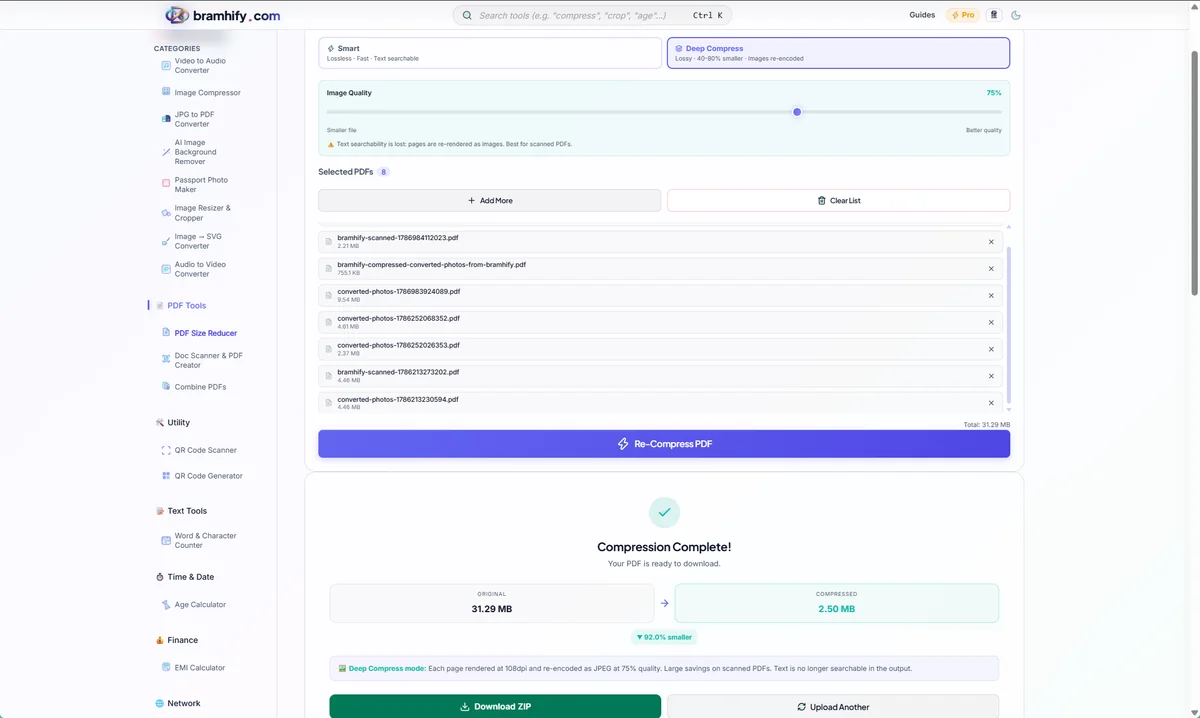
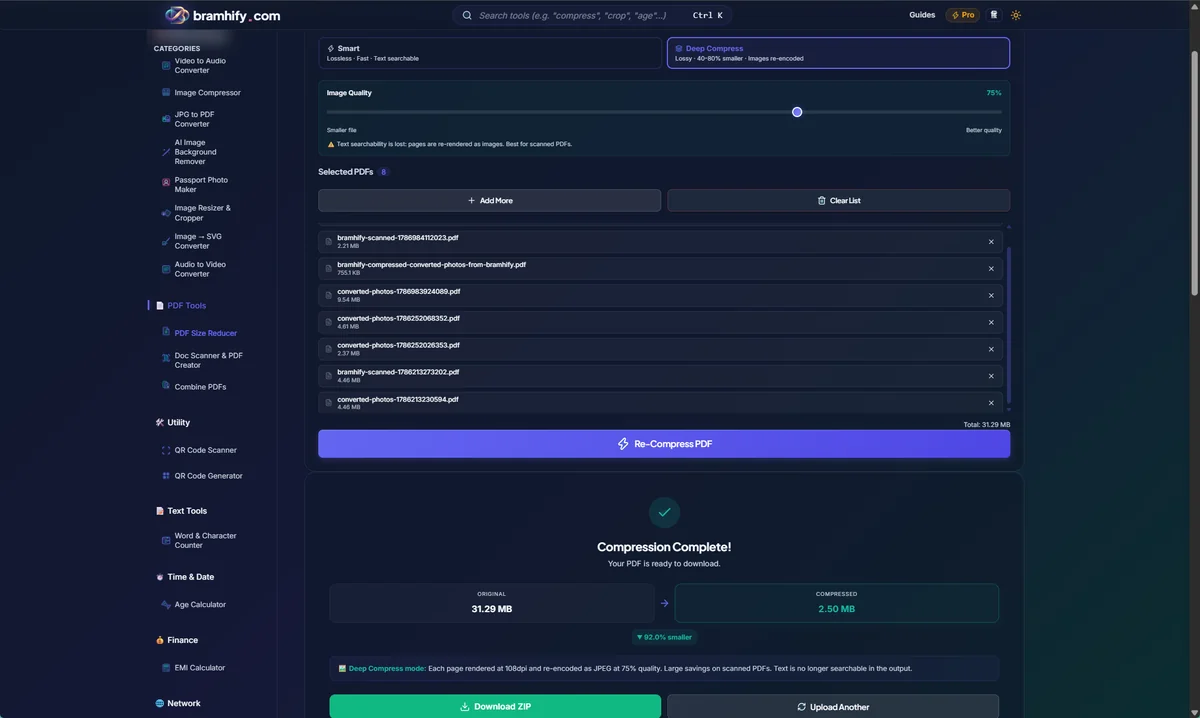
The Bramhify PDF Size Reducer operates entirely within your browser. When you select a file, the code downloaded to your browser does all the work right on your device's processor. Your file never leaves your computer.
This on-device processing means zero upload times, zero risk of data breaches, and no arbitrary file size limits imposed by cloud providers trying to save server costs.
Start Compressing Your PDF Here:

How Does It Reduce Size Without Losing Quality?
You might wonder how it is mathematically possible to reduce a file from 10MB down to 2MB while keeping it looking exactly the same. The secret lies in removing hidden bloat rather than destroying visible content.
When a PDF is created by Word, PowerPoint, or a scanner, it often includes a massive amount of invisible data:
- Oversized Images: A scanner might capture a document at 600 DPI (dots per inch), which is necessary for high-end printing but completely unnecessary for viewing on a screen. Smart compression downsamples these images to 72 or 150 DPI. The images still look perfectly sharp on your monitor, but their data footprint shrinks drastically.
- Hidden Metadata: Editing software often saves the entire revision history, author details, and hidden layers inside the PDF. This data takes up space but serves no purpose for the final reader. A good compressor strips this out.
- Unused Fonts: Sometimes, a PDF embeds an entire font family (including bold, italic, and thousands of special characters) just to display a few words in a specific style. Smart compression can subset these fonts, keeping only the specific letters actually used in the document.
By intelligently targeting this bloat, the Bramhify PDF Size Reducer can drastically lower your file size while keeping the visual quality identical to the original.
Step-by-Step Guide
Follow these simple steps to shrink your PDF while maintaining excellent visual fidelity.
Step 1: Open the PDF Reducer
Tap the tool card above to launch the Bramhify PDF Size Reducer. You will notice it loads instantly because there are no heavy server connections to wait for.
Step 2: Select Your PDF File
Tap the upload area on the screen and select the heavy PDF file you wish to compress from your device. You can also drag and drop the file directly if you are using a computer.
Step 3: Choose the Compression Level
This is the most critical step for maintaining quality. The tool offers different levels of compression.
Smart Compression: This mode intelligently analyzes your PDF, stripping away redundant metadata and slightly downscaling oversized images without affecting readability. This is the perfect choice for reports and presentations where you need to reduce PDF file size without losing quality. Text remains razor-sharp, and images still look great on screen.
Aggressive Compression: If you are trying to meet a very strict upload limit (like a government portal requiring files under 500KB), this mode will compress images much further. While there might be a slight drop in image sharpness, the text will remain perfectly readable.
Select "Smart Compression" for the best balance of size and quality.
Step 4: Download Your Optimized PDF
Tap the button to compress. The processing happens in milliseconds. Once complete, tap the download button to save your newly optimized, much smaller PDF directly to your device.
You can now easily email or share your document without worrying about attachment limits!
If you frequently work with PDFs and want to explore more tools that respect your privacy, be sure to check out our list of the best free PDF tools that never upload your files.