

When it's time to claim your House Rent Allowance (HRA) for tax deductions, your company’s HR or finance portal usually requires you to submit all your signed monthly rent receipts in a single PDF file. If you have 12 separate photos of these receipts on your phone, you might be wondering how to compile them into one neat document.
The Struggle with HRA Documentation
Taking a photo of your landlord's signature every month is easy, but converting those 12 separate JPG images into a single PDF can be frustrating. You might try pasting them into Microsoft Word, adjusting margins, and dealing with blurry images. Furthermore, uploading these private financial documents to a generic online converter can expose your landlord's PAN details and your address to data brokers.
The Bramhify Solution
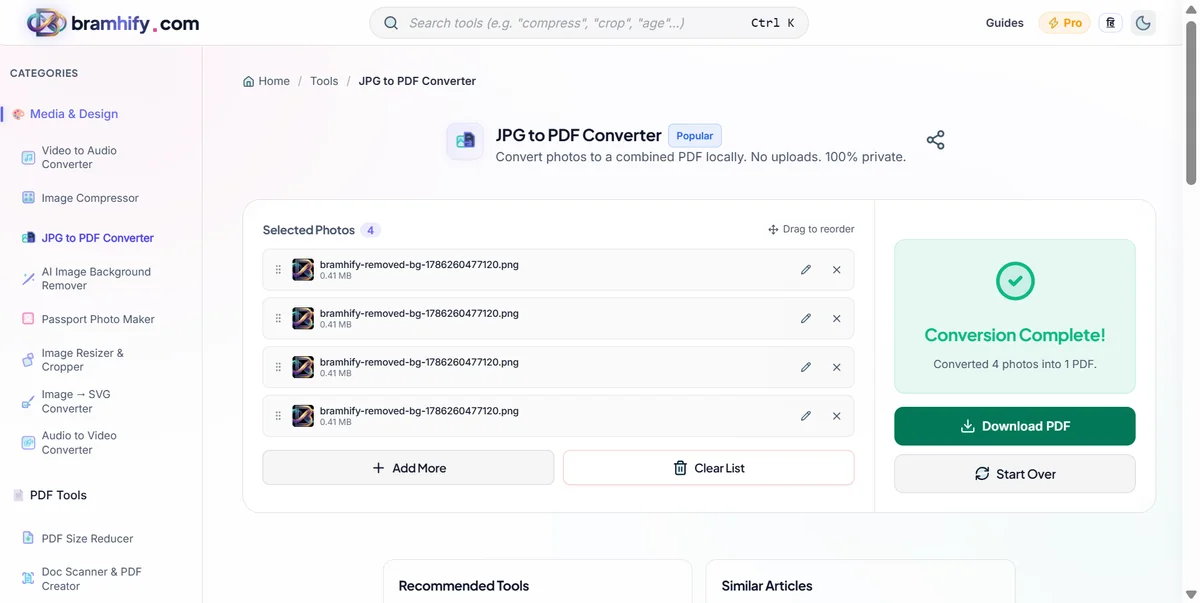
Bramhify's JPG to PDF Converter is the perfect tool for creating HRA submission documents. It allows you to select multiple rent receipt photos from your gallery and instantly combines them into a single, professional PDF file. Most importantly, it processes everything 100% locally on your device, ensuring that your financial details and PAN numbers remain completely private.
JPG to PDF Converter:

Quick Steps
Here is how you can compile your rent receipts into a single PDF in under a minute:
Step 1: Select Your Receipt Photos
Tap the upload area on the JPG to PDF tool and select all the photos of your rent receipts (from April to March) from your phone's gallery. You can select multiple images at once.
Step 2: Arrange Chronologically
Once the images load, you can drag and drop them to reorder. It is best practice to arrange them chronologically (e.g., April first, then May, June, etc.) so your HR department can verify them quickly.
Step 3: Convert to PDF
Tap the "Convert to PDF" button. The tool will instantly compile all the selected photos into a single PDF document right inside your browser, without uploading anything.
Step 4: Download and Submit
Tap download to save the final PDF file to your device. It is now ready to be uploaded to your company's tax declaration portal!
Frequently Asked Questions (FAQs)
Will the PDF file size be too large for my HR portal?
Our converter optimizes the PDF to keep the file size reasonable while maintaining the readability of the text. However, if your company has a strict 1MB or 2MB limit and your file is larger, you can use our PDF Size Reducer tool to safely compress it.
Can I convert photos taken from my phone's camera?
Yes! You can select standard JPG, JPEG, PNG, or WEBP images directly from your phone's camera roll.
Do I need to crop the photos before converting?
While the converter will fit your images onto the PDF pages, it is highly recommended to crop out unnecessary backgrounds (like your desk or hands) using your phone's built-in editor before uploading them to the tool. This makes the final PDF look much more professional.
If you need more help with digitizing your documents, read our guide on how to scan documents to PDF on your phone for free.