

You are trying to stream a movie, attend a Zoom call, or download a large file, but everything keeps buffering. You suspect your Internet Service Provider (ISP) is not delivering the speeds you pay for, so you decide to run a quick speed test.
However, searching for a speed test online usually leads to pages covered in flashing banner ads and video pop-ups. Loading those heavy advertisements actually consumes your network bandwidth. The result? You get an artificially low, inaccurate reading.
In this guide, we will explore why popular speed test sites give distorted results, how to check your true bandwidth using an ad-free tool, and how to interpret Ping, Download, and Upload speeds.
The Hidden Problem with Popular Speed Test Sites
Most of the major speed testing platforms operate on an aggressive ad-revenue business model. Because their primary goal is to monetize every single page visit, they pack their interfaces with high-bandwidth video advertisements, affiliate links, and dozens of third-party user tracking scripts.
When you click the "Start Test" button on one of these sites, several things happen simultaneously:
- Bandwidth Cannibalization: Your web browser is forced to divide its network capacity between downloading the actual speed test packets and fetching high-resolution commercial video ads running on the sidebar. If your internet connection was already struggling, those heavy ads can consume 20% to 40% of your available speed, leading to a severely false reading.
- Aggressive Location & Device Tracking: Many speed test platforms sell user data. They track your exact geographic location, your ISP name, your IP address, your browser type, and how often your connection drops, bundling this data for market research firms.
- App Download Traps: Many portals intentionally cripple their mobile web experience, displaying annoying prompts forcing you to download their dedicated mobile app, which then requests invasive background permissions.
The Bramhify Solution: Pure, Unbiased Speed Testing
The Bramhify Internet Speed Test was engineered to eliminate all of these issues. It is a completely free, ad-free, and lightweight utility that runs purely inside your browser without any bloated external dependencies.
Because our tool has zero advertisements, zero tracking pixels, and zero background analytics, 100% of your available network pipe is dedicated exclusively to testing your connection. This guarantees that you receive the most precise, unthrottled, and mathematically accurate measurement of your true internet speed.
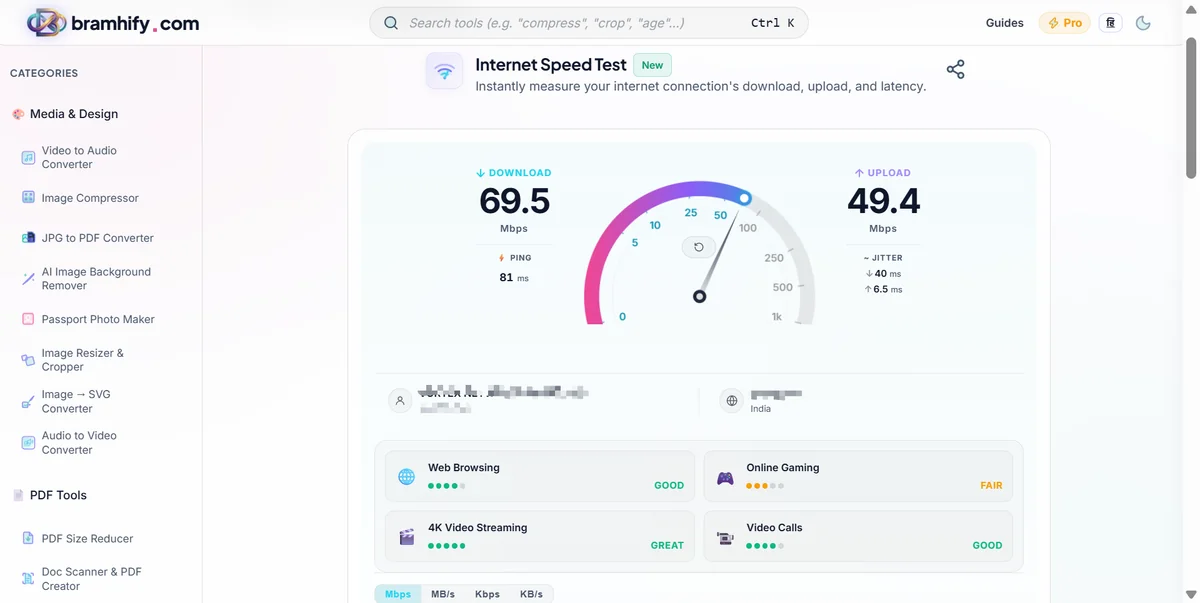
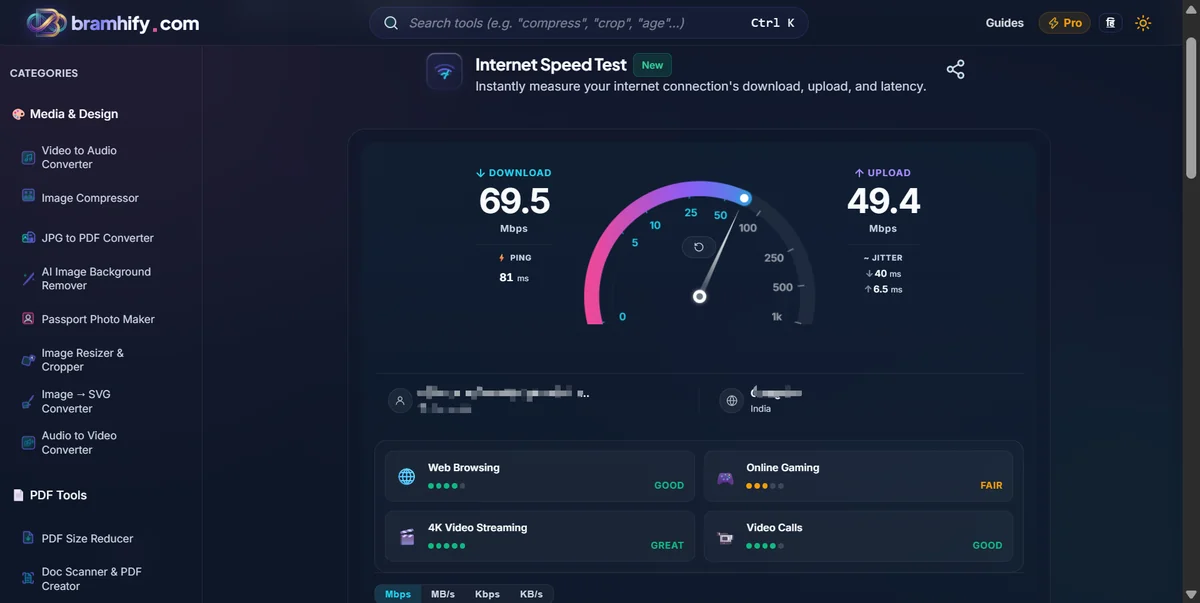
Test Your Real Internet Speed Instantly:

Step-by-Step: How to Run an Accurate Speed Test
To ensure your test results reflect your true connection quality without local interference, follow these simple steps:
Step 1: Open the Speed Checker
Tap the interactive tool card above. The clean interface loads almost instantaneously. Notice the complete absence of flashing banners, popups, or auto-playing videos.
Step 2: Prepare Your Environment
Before clicking start, pause any active downloads, close background video streams on other browser tabs, and ensure other family members or colleagues are not streaming high-bitrate video on the same Wi-Fi network.
Step 3: Initiate the Test
Click the large, central "Start Test" button. The tool will begin its multi-phase diagnostic sequence:
- Latency / Ping Test: It first sends a series of tiny data packets to the closest server to calculate your round-trip response time in milliseconds.
- Download Speed Test: Next, it downloads multiple chunks of data simultaneously to measure the maximum sustained throughput your line can handle.
- Upload Speed Test: Finally, it uploads data back to the server to determine how quickly you can push files out to the web.
Within 10 to 15 seconds, the test finishes and presents you with a comprehensive summary.
Decoding Your Speed Test Results
Unless you work in IT or network engineering, terms like Mbps and Ping can sound like confusing jargon. Here is what each metric actually means for your daily digital activities:
1. Download Speed (Mbps)
Download speed measures how fast your device pulls data from the internet. Measured in Megabits per second (Mbps), this is the most critical metric.
- What it affects: Streaming on Netflix, downloading files, and browsing social media.
- Good speed: For streaming 4K video smoothly, you need at least 25 Mbps.
2. Upload Speed (Mbps)
Upload speed measures how fast your device transmits data out to the internet.
- What it affects: Video quality in Zoom calls, sending email attachments, and uploading to Google Drive.
- Good speed: For clear HD video meetings, you need at least 5 to 10 Mbps.
3. Ping and Latency (ms)
Ping (measured in milliseconds, ms) represents the latency or reaction time of your connection. It calculates how long it takes for a signal to leave your device, reach a remote server, and return back.
- What it affects: Real-time online competitive gaming, VoIP voice calls (like WhatsApp calling), and live trading.
- What is a good ping? In the world of ping, lower is always better. A ping under 20ms is phenomenal. A ping between 20ms and 50ms is great for gaming. If your ping exceeds 100ms, you will experience noticeable audio delays in calls and severe "lag" in online games.
Quick Fixes for Slow Internet Speeds
If your ad-free test reveals that your actual speeds are far below the plan you are paying for, try these proven troubleshooting steps:
- Switch from 2.4 GHz to 5 GHz Wi-Fi: Modern dual-band routers offer two frequencies. 2.4 GHz travels through walls better but is slower; 5 GHz is much faster and less prone to interference from neighbors' networks.
- Restart Your Modem and Router: Over weeks of continuous operation, routers accumulate memory bloat and routing table errors. Powering off your router for 30 seconds clears the cache and establishes a clean connection.
- Test with an Ethernet Cable: If you are on a laptop or desktop, plug directly into the router via a physical LAN cable. If your wired speed is fast but Wi-Fi is slow, your issue is wireless interference, not your internet provider.