

Have you ever recorded a beautiful acoustic song cover, a funny voice note with a friend, or an important audio announcement and wanted to share it with your contacts on your WhatsApp Status?
If you have tried this, you quickly ran into a frustrating limitation: WhatsApp Status only allows you to upload photos and videos. It does not support direct audio (MP3, WAV, or M4A) uploads. This means that to share your audio, you have to find a way to convert it into a video file (MP4) first.
Why Privacy Matters for Your Voice Notes
When people realize they need to convert their audio to a video, they usually turn to Google and click on the first "audio to video converter" they find. However, uploading your personal voice recordings to random third-party converters is a huge privacy risk.
Those cloud servers often store your voice data, and you have absolutely no control over who might listen to your recordings, how long they are kept, or whether they might be misused or leaked. Furthermore, waiting for a large audio file to upload, process on a remote server, and then downloading the resulting video consumes a massive amount of mobile data. If you are sharing a 5-minute song cover, this process could eat up dozens of megabytes unnecessarily.
The Safe, Browser-Based Solution
Bramhify's Audio to Video Converter completely solves this problem by running entirely within your mobile browser. It uses 100% local processing (powered by WebAssembly), which means your voice recordings never leave your phone.
You can instantly turn your voice note into a WhatsApp-ready MP4 video by adding a simple background image - all without spending a single MB of data on cloud uploads. It is the fastest, safest, and most data-efficient way to get your audio onto WhatsApp.
Audio to Video Converter:
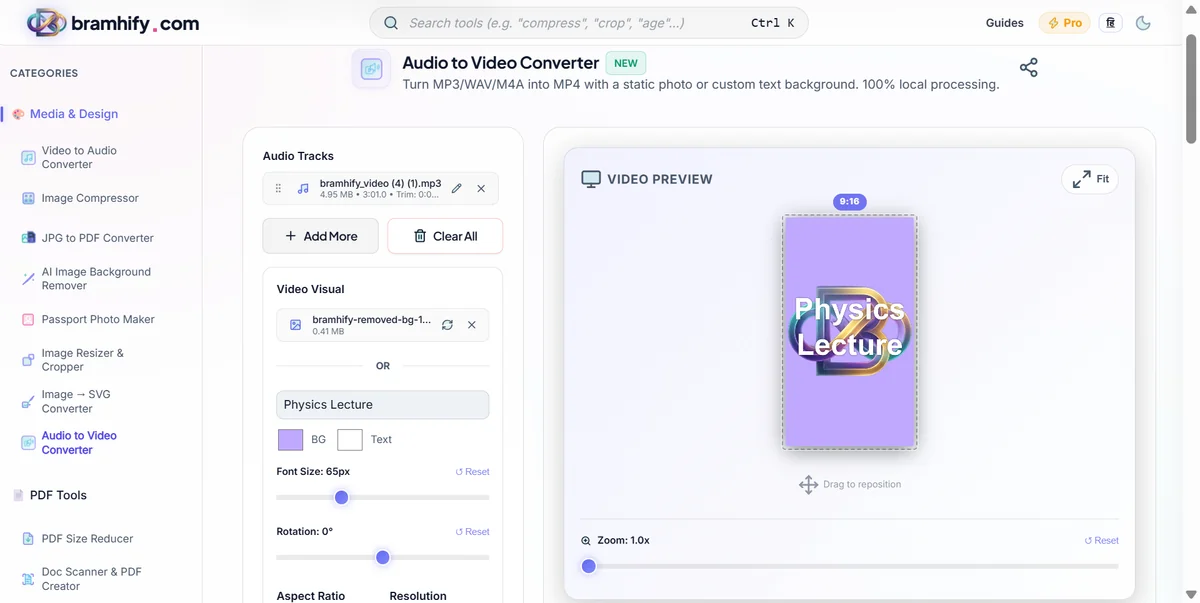
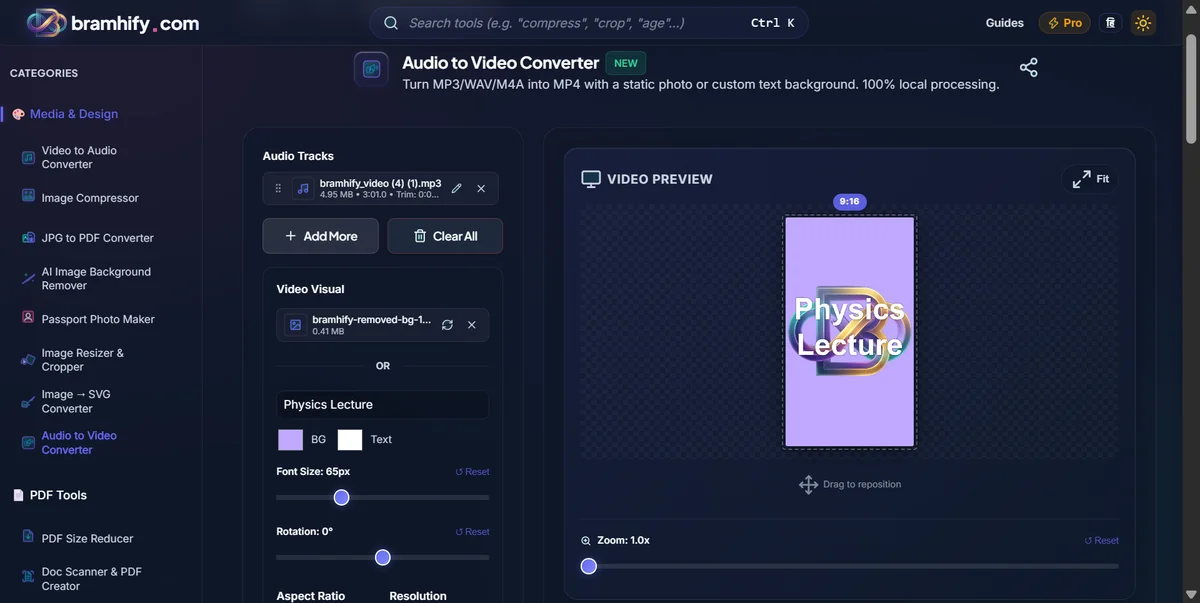

Step-by-Step Guide for WhatsApp Status
Here is exactly how you can prepare your recording for WhatsApp Status in just a few seconds, straight from your phone:
Step 1: Upload Your Voice Note
Tap the upload area in the tool and select your voice recording (MP3, WAV, or M4A) from your phone's file manager or voice recorder folder. If you rambled a bit at the start of your recording or made a mistake at the end, don't worry. You can use the built-in trimming tool to cut out the unwanted parts before converting.
Step 2: Add a Background Image
WhatsApp Status needs something visual to display while your audio plays. Tap to upload a nice selfie, a nature photo from your gallery, or album art if you are sharing a song cover. Alternatively, you can use our text tool to type a clean background like "Listen to my new cover!" or "Important Announcement". The tool will combine this visual with your audio track.
Step 3: Choose 9:16 Aspect Ratio
This is the most important step for WhatsApp. Since WhatsApp Status is displayed vertically on mobile screens, you must select the 9:16 (Portrait) aspect ratio. This ensures your background image fills the entire screen perfectly without any awkward black borders.
Step 4: Generate and Share
Tap the Generate button. Your phone will instantly process the video locally. Once the progress bar reaches 100%, tap download and save the MP4 directly to your gallery. Finally, open WhatsApp, go to the Status tab, and upload your newly created video. Your contacts will now be able to listen to your audio while viewing your background image!
For a more general guide on adding images to audio for YouTube or Instagram, check out our guide on How to Convert Audio to Video with a Background Image.